The best vocal chain preset for GarageBand is one that uses GarageBand's own stock plugins in a sensible order, so it loads on any Mac with no extra purchase. A good chain cleans the signal first, controls the level second, adds tone and effects last, and leaves room for you to adjust each step to your voice and mic.
I'm Warren Young, and I mix vocals every week. This page explains what a vocal chain is, what order works, and how to judge a preset before you use it. If you want a ready-made option, see the GarageBand vocal presets collection.
What is a vocal chain preset in GarageBand?
A vocal chain is the set of plugins on one vocal track, in a fixed order. A chain preset saves that whole setup, with every plugin and every setting, so you can load it in one click instead of building it by hand. In GarageBand, the plugins sit in the Smart Controls of the track, and a preset saves them together as a patch.
The order matters because each plugin changes what the next one hears. A compressor that sits before a de-esser reacts differently from one that sits after it. A chain preset gives you a tested order, so you start close to a finished sound.
What order should a GarageBand vocal chain use?
Use this order as a default: clean up, control the level, shape the tone, fix harsh sounds, then add space and time effects. The steps below use plugins that come with GarageBand for Mac. Your version of the app may show slightly different names, so check the plugin menu on your own Mac.
1. Noise Gate (optional)
The Noise Gate lowers the signal when the singer is quiet. It helps with room noise, breath between lines and headphone bleed. Set it gently. A gate that is too tight chops the start and end of words and sounds unnatural. If your recording is already clean, skip it.
2. Channel EQ for cleanup
Use Channel EQ before the compressor to remove what you do not want. A high-pass filter in the low end removes rumble and mic stand noise. Many vocals need the filter somewhere in the range of 70 to 100 Hz, but this depends on the voice, so listen and raise it only until the vocal still sounds full.
3. Compressor
The Compressor evens out loud and quiet words. Lower the threshold until the gain reduction meter moves on the loudest words, then adjust the ratio, attack and release by ear. Start with light compression. A vocal that sounds flat and lifeless has too much. For a detailed walk-through of the controls on the Logic version of the plugin, read what vocal compression is and why it works. The idea is the same in GarageBand.
4. Channel EQ for tone
After the compressor, shape the tone. A small boost in the upper midrange or high end adds presence and air. A small cut in the low midrange can remove a boxy or muddy sound. Move one band at a time and compare with the plugin switched off, so you know the change helps.
5. DeEsser 2
DeEsser 2 reduces sharp "s" and "t" sounds. Compression and high-end boosts often make these sounds louder, so the de-esser belongs after them. Use just enough to remove the sting. Too much gives a lisp.
6. Pitch Correction (optional)
Pitch Correction in GarageBand can fix small pitch drift, or give the hard-tuned effect when you push the settings to the extreme. Slow settings sound natural. Fast settings sound robotic. Use it only when the song needs it.
7. Reverb and delay
Add space last. GarageBand includes reverb and delay plugins, and it also has built-in reverb and echo send controls on its tracks. Keep the vocal in front. A common mistake is a reverb so large that the words blur. Send a small amount, then raise it until you notice it and lower it a little.
What makes a vocal chain preset good?
A good preset is not the one with the most plugins. Check these points before you trust any preset, mine or anyone else's.
- Stock plugins only. The preset should use plugins that come with GarageBand, so it loads on every Mac and never shows a missing-plugin warning.
- Sensible gain. The vocal should not jump in volume when you load the preset. If it clips or drops, the gain between plugins is wrong.
- Room to adjust. Every plugin should be easy to reach and change. A preset you cannot adjust only works for one voice.
- A style that matches your song. A bright pop chain on a dark, moody track will fight the mix. Pick the preset for the sound, not for the name.
- Honest description. The seller should say what the preset is for, which DAW it needs and what it does not do.
No preset fixes a bad recording. A noisy room, a mic too far away or a clipped take will still sound bad. Get a clean, well-leveled take first, then add the chain.
How do I use a vocal chain preset in GarageBand?
- Record or import your vocal on an audio track.
- Install the preset file following the steps in how to install and use GarageBand vocal presets.
- Select the track, open the Library, and choose the preset from the list.
- Play the loudest part of the song and watch the meters. Lower the track volume if it peaks too hot.
- Open the plug-ins in Smart Controls and adjust each one, especially the compressor threshold and the reverb amount, to fit your voice.
Always listen to the vocal with the full song playing, not on its own. A vocal that sounds great alone can disappear in the mix.
Are there free GarageBand vocal presets?
Yes. A free preset is a good way to test a chain before you spend anything. I list free options in my guide to free vocal presets for Logic Pro and GarageBand. For a fair comparison of free and paid options, read best GarageBand vocal presets: free vs paid.
Free presets are fine for learning. Paid packs make sense when you want a wider range of styles, such as R&B, hip-hop, pop, reggae and effect sounds, without building each chain yourself.
Which vocal presets work for GarageBand?
Presets made for GarageBand work in GarageBand. Presets made for other DAWs, such as Logic Pro, FL Studio or Ableton, do not load directly, because each DAW uses its own preset format. Always check that the product says GarageBand and check the DAW it needs before you buy.
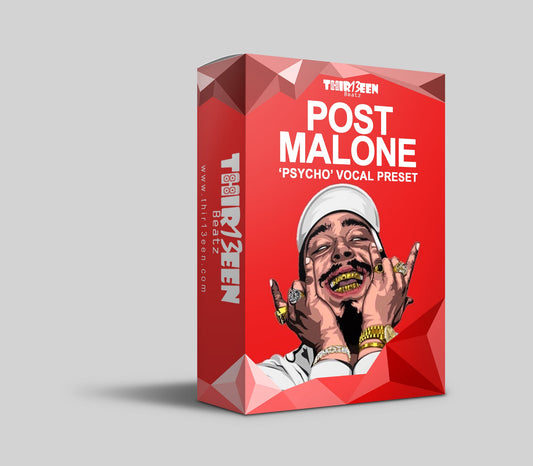
At Thir13een, the GarageBand vocal presets collection has 16 products, from 10 to 49 USD. Single presets are 10 USD each. The Vocal Preset Mega Bundle for GarageBand is 49 USD and includes presets for artist-style and genre sounds, plus effect presets such as Auto-Tune, cellphone and chopped and screwed. The product page says the presets work with GarageBand's built-in effects, so you need no extra plugins.
Some presets are named after well-known artists. Those are [Artist]-style sounds, made to get a similar feel. They are not affiliated with the artist, and no preset can turn your voice into theirs.
What vocal effects can I get in GarageBand?
GarageBand includes plugins for EQ, compression, noise gating, de-essing, pitch correction, reverb, delay and distortion-type effects, plus voice presets in the Library. You can stack several of them on one track. A chain preset is a faster way to use those same tools in a good order.
If you only want to learn the tools, build your own chain with the seven steps above. It takes about ten minutes, and you will understand every setting. If you want to save time or want a specific style, a preset gives you a strong starting point that you can still change.
Can I build a GarageBand vocal chain with only stock plugins?
Yes. The seven steps above use only what comes with GarageBand. You do not need third-party plugins to get a clean, controlled, professional-sounding vocal. Better technique matters more than more plugins: a good mic position, a quiet room, steady levels and small, careful settings.
Once you have a chain you like, save it as your own preset in GarageBand so you can reuse it on the next song. That is the same thing a purchased preset does, with your own settings.
Quick answers
What is the best order for a vocal chain? Gate, cleanup EQ, compressor, tone EQ, de-esser, pitch correction if needed, then reverb and delay.
Do I need to pay for a good chain? No. You can build one with stock plugins or start with a free preset. Paid presets save time and give you more styles.
Will a preset work on my voice? It gives a starting point. You still need to adjust the compressor threshold and the effect levels for your voice and mic.
For the full picture of presets, effects and mixing in one place, read GarageBand vocals: the complete guide to presets, effects and mixing.